My First Small IoT Project: A Smart Water Tank Level Monitor

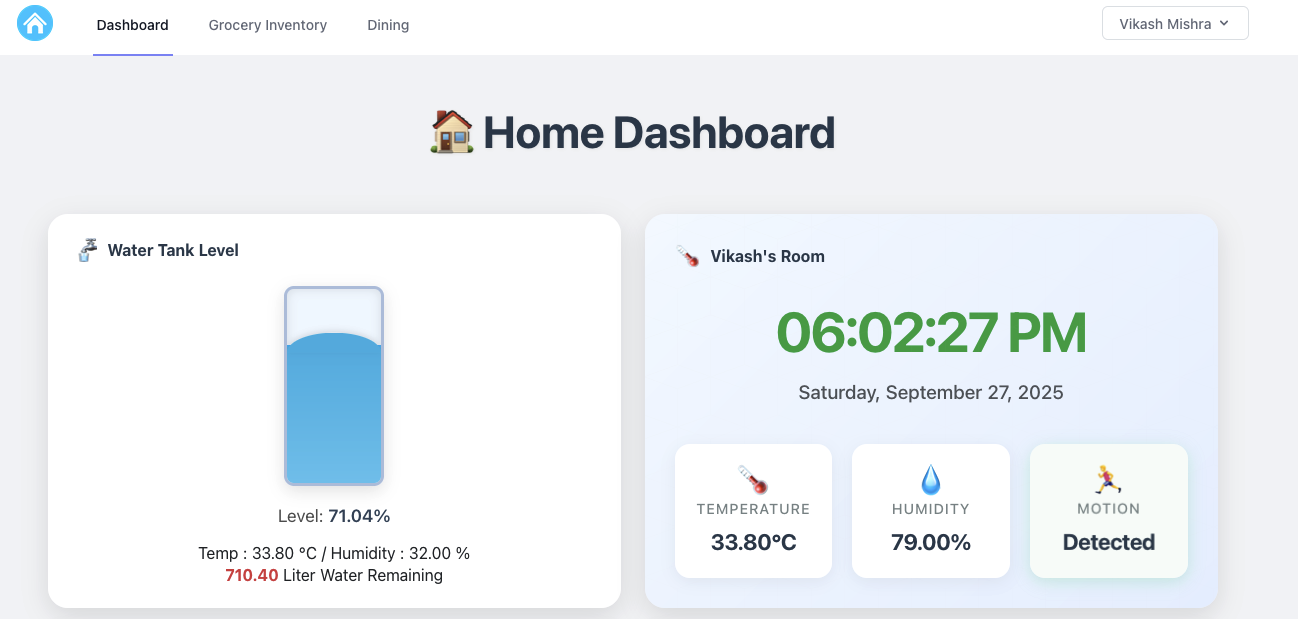
Home Dashboard

Starting your first Internet of Things (IoT) project can feel like opening a black box of circuits, code, and 3D printing fails. But the payoff—when that little red LED finally blinks, or in my case, when the water level reading finally appears on the screen—is worth every moment of frustration.

My goal was simple: stop climbing onto the roof to check the tank and instead build a reliable water level monitoring system using an ESP32.


The Hardest Part Wasn’t the Code—It Was the Plastic

When I began, I thought the coding and wiring would be my biggest challenge.
Turns out, it was the housing.

The device needed to sit securely on the tank cap and survive outdoors. That meant designing a custom, weatherproof enclosure. This is where I dove into 3D modeling with Blender—and failed many times.

I printed version after version:

  • Too small
  • Walls too thin
  • Ultrasonic sensor hole misaligned
  • Mounting screw holes stripped

Each mistake was frustrating, but every failure taught me something new. Eventually, I managed to design and print the perfect enclosure—watertight, sturdy, and snugly mounted on the tank cap.

The feeling when a digital design becomes a working physical object is simply incredible!


The IoT Brains and Sensory Organs

Here’s the simple but powerful hardware setup I used:

  • ESP32 Development Board – The brain of the project. Powerful, has built-in Wi-Fi (great for data logging or sending alerts), and beginner-friendly with the Arduino IDE.
  • Ultrasonic Distance Sensor (HC-SR04 or similar) – The core sensor. It measures the distance between the sensor and the water surface.
  • DHT11/DHT22 Sensor – Bonus sensor for temperature and humidity inside the enclosure. Not required for water monitoring, but great for learning to integrate multiple sensors.

From Distance to Liters: The Simple Physics

The trick is converting the distance measured by the sensor into meaningful values like water level percentage and remaining tank capacity.

Known values in my setup:

  • Distance from sensor to bottom (Dfloor) = 120 cm
  • Distance when tank is empty (Dempty) = 20 cm
  • Tank capacity (Vcapacity) = 1000 liters

Step 1: Usable Water Height
Hmax = Dfloor – Dempty = 100 cm

Step 2: Current Water Height
Hwater = Dfloor – Dmeasured

Step 3: Water Level Percentage
Level% = (Hwater / Hmax) × 100

Since Hmax = 100 cm, every 1 cm of water = 1% full.

Step 4: Volume Remaining
Volume = (Hwater / 100) × Vcapacity

With a 1000-liter tank and 100 cm usable height, every 1 cm of water ≈ 10 liters.


Connect with Me – Buy This Smart IoT Project!

I’m passionate about making practical IoT solutions accessible and affordable.

If this project excites you, you don’t need to build it from scratch—I’ve already developed and tested a ready-to-install Smart Water Tank Level Monitor. It’s compact, weatherproof, Wi-Fi enabled, and fully calibrated for home use.

💧 This device will save you time, effort, and water by giving you accurate tank readings instantly.

👉 If you’d like to purchase one, simply connect with me:
📩 mail@vikashmishra.online

The ESP32 Code, Web Integration, and Hosting

The ESP32 code powering this project not only calculates the water level but also integrates Wi-Fi connectivity. To ensure efficiency, it uses a smart reporting algorithm—sending data to the server only when the water level changes by 1% or more. This saves bandwidth and reduces server load.

For hosting, I use CLOUDPOKO.com

Why CLOUDPOKO?

  • Super-fast, reliable servers
  • Affordable plans perfect for IoT API calls
  • Easy setup for PHP-based dashboards
  • Outstanding uptime and support

CLOUDPOKO has been the backbone of my IoT setup. If you’re planning to host your own IoT projects or even personal websites, I highly recommend them.

On the backend, I built a simple PHP dashboard to collect sensor data and display real-time water levels. It’s lightweight, efficient, and works seamlessly with CLOUDPOKO hosting.

(I’ll share the complete ESP32 (Arduino) code in my next blog.)

Run Powerful AI on Your PC: My Hands-On Experience with Ollama and Small Language Models (10-Minute Read)

AI - Ollama Hands on

Hey everyone! Ever felt curious about playing around with Artificial Intelligence, but thought it needed a supercomputer that costs a fortune? Well, I’m here to share my personal journey of diving into the world of AI right on my regular PC, thanks to a fantastic tool called Ollama and the magic of small language models (SLMs). For us in India, access to powerful and private AI is becoming increasingly important, and this method offers just that. Trust me, if I can do it, anyone can! Let’s get started on this exciting adventure. 🚀


My “Aha!” Moment with Local AI

Like many of you, I’ve been fascinated by the buzz around AI. Tools like ChatGPT are incredible, but the thought of running something similar, completely privately, on my own machine always seemed like a distant dream. Concerns about data privacy and the need for constant internet access were always at the back of my mind.

Then, I stumbled upon Ollama. It was like a lightbulb went off! This open-source tool promised a simple way to download, run, and manage large language models (LLMs) locally. My initial thought was, “Yeah, right. My PC can barely handle some games.” But as I dug deeper, I discovered the world of small language models. These are AI models that are intentionally designed to be efficient and lightweight, making them perfect for running on everyday computers without needing top-tier GPUs or massive amounts of RAM.

My “aha!” moment came when I successfully ran my first model. The feeling of having a conversational AI running purely on my laptop, without any internet connection, was truly empowering. It opened up a whole new world of experimentation and learning, all within the secure confines of my own device.


Step-by-Step: How I Got My First AI Model Running Locally

Let me walk you through the exact steps I took to get my first small language model up and running using Ollama. It’s simpler than you might think!

1. Installing Ollama: The Easy First Step

The first step was to get Ollama installed on my PC. I headed over to the official Ollama website (it’s super easy to find with a quick Google search). They have clear installation instructions and download links for Windows, macOS, and Linux. Since I’m on Windows, I downloaded the .exe file. The installation process was a breeze – just a few clicks, and Ollama was ready to go. It even runs a little server in the background without you having to do anything complicated.

2. Opening the Command Line: Your Gateway to AI

Ollama works through your computer’s terminal or command prompt. Think of it as a direct line to your system.

  • For Windows users: Just type “cmd” or “Command Prompt” in your Start Menu search bar and click on it.
  • For macOS/Linux users: Open the “Terminal” application (you can usually find it in your Utilities folder).

Don’t be intimidated by the command line! We’ll only be using a few simple commands.

3. Choosing the Right Small Model: Efficiency is Key

This is where the magic of running AI on a regular PC truly shines. Instead of aiming for massive, resource-hungry models, we focus on small language models (SLMs). These models are trained on vast amounts of data but are optimized for speed and efficiency.

I browsed the Ollama library. It’s like an app store for AI models! I was looking for models with parameter counts in the billions (indicated by ‘B’), rather than tens or hundreds of billions. Based on recommendations and their descriptions, I decided to start with Phi-3 Mini (3.8B). It’s known for its impressive performance despite its small size. Other great options include Gemma (2B or 7B) by Google and Llama 3 (8B) by Meta.

4. Running Your First AI Model: The Exciting Part!

Now for the moment of truth! In my command prompt, I typed the following command:

<pre><code class=”language-bash”>ollama run phi3 </code></pre>

(Of course, if you choose a different model, you’d replace phi3 with the model’s name, like ollama run gemma:2b or ollama run llama3:8b).

The first time you run this command for a particular model, Ollama will automatically download it from the internet. This might take a few minutes, depending on your internet speed. Grab a cup of chai while you wait! ☕

Once the download is complete, you’ll see a >>> Send a message prompt. This is it! You’re now interacting with an AI model running locally on your PC. I typed a simple greeting, and the model responded almost instantly. I was amazed! I then asked it to summarize a short article I had, and it did a pretty good job.

To end the conversation, just type /bye and press Enter.


My Go-To Small Language Model Recommendations for Indian Users

Based on my experience, here are some small language models that I found particularly good for getting started, keeping in mind the kind of tasks we might commonly need:

  • Phi-3 Mini (3.8B): Excellent all-rounder. Great for creative writing, summarizing text, answering questions, and even some basic coding tasks. Its smaller size makes it very responsive.
  • Gemma (2B): If you have a slightly older PC or want something incredibly lightweight, Gemma 2B is a fantastic choice. It’s surprisingly capable for its size and can handle basic natural language tasks efficiently.
  • Llama 3 (8B): While slightly larger than Phi-3 Mini, Llama 3 8B offers a noticeable step up in performance for more complex tasks. It’s a good balance between capability and resource usage.

Remember to check the Ollama library for the exact command to run each specific version of these models (e.g., ollama run gemma:7b).


Level Up Your Local AI Experience: Essential Resources

To help you on your journey with Ollama and local AI, here are some fantastic resources I found incredibly helpful:

  • Official Ollama Documentation: This is your primary source for all things Ollama. You’ll find detailed instructions, command references, and guides on more advanced features: https://ollama.com/docs
  • Ollama Model Library: Keep exploring this page to discover new and interesting small language models: https://ollama.com/library

And here are some engaging video tutorials that can guide you visually:


Why This Matters for Us in India

Running AI models locally has significant benefits, especially for users in India:

  • Data Privacy: Your interactions and data stay on your computer, crucial for sensitive information.
  • Offline Access: No need for a constant internet connection, which can be unreliable in some areas.
  • Cost Savings: Once the models are downloaded, there are no recurring costs associated with usage.
  • Learning and Experimentation: It provides a fantastic platform for students, developers, and anyone curious about AI to learn and experiment without relying on external services.

My experience with Ollama and small language models has been incredibly positive. It’s empowering to have access to AI capabilities right on my PC, privately and affordably. I encourage all of you to give it a try. It’s a fantastic way to explore the exciting world of artificial intelligence without needing a high-end machine. Share your experiences in the comments below – I’d love to hear about the models you try and the cool things you do with them! Happy AI exploring! 😊

Beyond the Hype: The Hard Truth About Generative AI’s 95% Failure Rate

AI Faulure

Is the hype around generative AI starting to deflate? A groundbreaking new study from MIT is sending shockwaves through the tech world, revealing that a staggering 95% of generative AI projects are failing to deliver real business value. This eye-opening statistic is fueling concerns of a potential tech bubble, leaving many to wonder if the AI revolution is more fizz than bang.

We’ve all seen the headlines promising transformative power, from AI chatbots revolutionizing customer service to AI tools supercharging content creation. But the reality, according to MIT’s “The GenAI Divide: State of AI in Business 2025” report, is far less glamorous. While individuals are finding handy uses for these tools, enterprises are largely struggling to translate pilot projects into tangible results.

Why the Generative AI Gold Rush is Turning into a Bust:

So, what’s behind this massive failure rate? It boils down to several critical factors:

  • The “AI Adaptation Gap”: Simply deploying a powerful AI model isn’t enough. Companies are realizing that generic AI needs significant customization and integration into their unique workflows. Without this crucial step, the AI remains a shiny toy that doesn’t actually solve business problems. Think of it like buying a Formula 1 car and expecting it to navigate Mumbai’s traffic without any modifications!
  • Chasing Hype, Not Value: Many organizations jumped on the generative AI bandwagon due to FOMO (fear of missing out), launching projects without clearly defined objectives or a solid understanding of how AI would drive real business value. The result? Technically impressive projects that don’t impact the bottom line.
  • Dirty Data, Broken Infrastructure: AI thrives on high-quality data. Unfortunately, many companies are grappling with data silos, inconsistencies, and a lack of “AI-ready” data. As the saying goes, “garbage in, garbage out.” Poor data leads to unreliable AI outputs and stalled projects.
  • The Overpromise Problem: The capabilities of generative AI have been heavily hyped, leading to unrealistic expectations. As this insightful video from Matt Berman on YouTube (Video linked below) points out, AI still struggles with many complex tasks, and the initial promises often fall short in real-world application.


The Human Cost of AI Overreach: When Automation Backfires

One of the biggest pitfalls is the rush to replace human workers with AI without a clear understanding of the nuances involved. While AI can automate repetitive tasks, many roles require uniquely human skills like emotional intelligence, complex problem-solving, and creative thinking.

Consider companies that prematurely downsized their customer service teams in favor of AI chatbots, only to face customer frustration and the need to rehire human agents. This highlights the danger of underestimating the value of human connection and adaptability in the workplace. Relying solely on AI in such scenarios can lead to:

  • Diminished Customer Experience: AI, for now, lacks the empathy and nuanced understanding to handle complex or emotionally charged customer interactions effectively.
  • Loss of Innovation: True creativity and out-of-the-box thinking often come from human intuition and collaboration, which AI cannot replicate.
  • Employee Disengagement: When employees feel like they are being replaced by machines, morale and productivity can plummet.

Where AI Still Doesn’t Belong (Yet!) 🚫

While AI’s capabilities are rapidly evolving, certain fields remain firmly in the realm of human expertise. As of now, AI is not well-suited for roles that demand:

  • High-Stakes Judgment and Creativity: Fields like artistic creation, strategic decision-making with incomplete information, and critical ethical judgments require a level of human intuition and understanding that AI currently lacks.
  • Deep Empathy and Interpersonal Connection: Professions such as therapy, counseling, nursing (especially bedside care), and teaching rely heavily on human-to-human connection and emotional intelligence.
  • Complex Physical Dexterity and Adaptability in Unstructured Environments: Think of skilled trades like plumbing, electrical work, and construction. These jobs require navigating unpredictable situations and fine motor skills that current robotic AI struggles with.

Navigating the Generative AI Landscape: A More Realistic Approach

The MIT study serves as a crucial wake-up call. Instead of blindly chasing the latest AI trends, businesses need to adopt a more strategic and realistic approach. This involves:

  • Focusing on Clear Business Problems: Identify specific challenges where AI can provide tangible solutions and measurable ROI.
  • Investing in Data Quality and Infrastructure: Ensure your data is clean, accessible, and properly formatted for AI training.
  • Prioritizing Integration and Customization: Adapt generic AI models to your specific needs and seamlessly integrate them into existing workflows.
  • Augmenting Human Capabilities, Not Replacing Them: Focus on how AI can empower employees and enhance their productivity, rather than simply trying to automate jobs out of existence.

The generative AI revolution is far from over, but the current hype cycle needs a healthy dose of realism. By understanding the limitations and focusing on strategic implementation, businesses can harness the true potential of AI without falling victim to the bursting bubble.

Feel free to subscribe and share the article. It feels good to see new subscribers and readers on the blog.

Better Late Than Never: My DIY Smart Home Revolution is Underway!

home automation

NOTE: All the materials/software/solutions I’ll be using in this project will be open-source and designed by me; no ready-to-use solutions will be used. It will be a complete personal project.

Introduction:

Ever felt like you missed the boat on the smart home trend? For years, I watched from the sidelines as friends and tech enthusiasts automated their lives. I’ll admit it – a part of me thought, “It’s a bit late for me.” But that feeling has given way to a new obsession: building my own complete, custom home automation system from the ground up.

This isn’t about buying a few smart plugs and calling it a day. This is about a full-scale home revolution, a project fueled by a desire for convenience, security, and a little bit of tech wizardry. If you’ve ever dreamt of a home that truly works for you, stick around. This is my journey, and it’s just getting started.

The Master Plan: A Home That Thinks for Itself

My goal is a holistic ecosystem that integrates every aspect of my daily life. Forget about fragmented apps and devices. My system is designed to be the brain of the house, handling everything from security to sustainability.

Here’s a breakdown of the core features I’m building:

  • Your Personal Digital Butler: My system will be the ultimate notification hub. Get instant alerts for everything: a package delivery, a water leak, or even a simple reminder to take out the trash. No more missed events, no more forgotten tasks.
  • The Unlocking Experience: I’m ditching the traditional key. With automatic door mechanisms and a fingerprint sensor, entry into my home will be seamless and highly secure. The door will know when I’m home and lock itself behind me, offering peace of mind.
  • Climate Control, Perfected: No more fiddling with the remote. Using temperature and humidity sensors, my system will intelligently manage the existing AC units to maintain a perfect, comfortable climate, all while optimizing energy usage.
  • Water Management, Simplified: Water is a precious resource. My system will monitor the water tank level in real-time, preventing overflows and automating the refilling process for efficient, hassle-free water management.
  • Smarter Appliances, Smarter Living: I’m putting an end to manual tasks. Using relay modules, I’ll control lights, fans, the washing machine, and other appliances remotely. Imagine a routine where the coffee maker starts brewing just as your alarm goes off.
  • The Guardian of the Network: A stable, secure network is the backbone of a smart home. My system will actively monitor the network, alerting me to any connectivity issues or suspicious activity, keeping my digital life safe.
  • Energy at a Glance: I’m a firm believer in “you can’t manage what you don’t measure.” I’ll be monitoring electricity availability and consumption to gain valuable insights, helping me identify opportunities to reduce my power bill and environmental footprint.
  • My Indoor Garden’s Best Friend: For the plant parent in me, I’m building a smart plant watering system that will use moisture sensors to deliver the perfect amount of water, ensuring my green friends thrive without constant supervision.
  • Automated Sentimental Reminders: Life gets busy. My system will be a digital memory keeper, automatically sending out personalized greetings for birthdays and anniversaries, making sure I never miss a special moment.

The Tech Behind the Magic

The heart of this entire operation is a powerful Raspberry Pi 5 server. For security, this server will be completely isolated from the direct internet, running all automation tasks over my local network (Wi-Fi and LAN). Remote access will be exclusively through a secure VPN connection, ensuring all my data stays private and protected.

The components I’m using are a tinkerer’s dream: ESP32 microcontrollers, distance sensors, light sensors, and a host of other peripherals.

But what’s a smart home without a command center? All the data and controls for this entire ecosystem will be displayed on a dedicated, always-on 10-inch screen. This central hub will provide a real-time overview of every system and allow me to control everything with a simple touch.

Join the Smart Home Revolution

This project is more than just a hobby; it’s a testament to the power of DIY and the incredible potential of technology to simplify our lives. I’ll be sharing every step of this journey, from the wiring nightmares to the triumphant moments of a fully automated routine.

If you’re inspired and looking to build a similar setup, I’m excited to announce that I’ll soon be offering the hardware and custom services I’m designing. To stay in the loop and get early access, drop me an email at mail@vikashmishra.online.

The era of the truly intelligent home is here, and I’m proof that it’s never too late to start building your own.

Unlock Your Own Cloud: Nextcloud on CLOUDPOKO Shared Hosting with CWP (Easy Setup Guide!)

NextCloud on CLOUDPOKO guide

Hey there, fellow digital traveler!

Ever feel like your precious photos, documents, and memories are scattered across a dozen different cloud services, each with its own privacy policy and data limitations? I certainly did. For years, I relied on the big names for convenience, but a nagging feeling always lingered: was my data truly mine? Was it secure? Could I trust that my personal information wasn’t being used in ways I didn’t approve of?

That’s when I discovered the magic of Nextcloud. Imagine having all the convenience of a cloud service – sync, share, collaborate – but with the incredible power of hosting it yourself. It’s like building your own private digital fortress, and it’s surprisingly accessible, even for those of us who aren’t server wizards.

Today, I want to share my experience setting up Nextcloud on shared hosting, specifically using a provider like CLOUDPOKO that runs on the CWP (Control Web Panel). Why CLOUDPOKO and CWP? Because many of you might be on similar hosting setups, and I want to show you just how straightforward this can be.

Why Did I Choose My Own Cloud?

Honestly, it boiled down to a few core desires:

  • Reclaiming My Data: This was paramount. I wanted my files, my photos, my calendar – everything – to reside on a server I controlled, not someone else’s. No more wondering about what algorithms were sifting through my life.
  • Privacy by Design: Nextcloud is open-source, built with privacy at its core. It felt like a breath of fresh air compared to services that profit from my data.
  • Unexpected Power: I initially just wanted file sync, but Nextcloud offers so much more! Collaborative document editing, video calls, calendar and contact syncing, even an AI assistant (if you configure it!). It became my personal productivity hub.
  • Cost-Effectiveness: While a dedicated server is tempting, shared hosting is a fantastic, budget-friendly entry point. Providers like CLOUDPOKO offer robust shared plans that handle Nextcloud beautifully.

My Go-To Method: The Magic of Softaculous on CWP

When I first thought about setting up my own cloud, my mind immediately went to complex server configurations and command lines. But then I remembered Softaculous. If your hosting provider, like many, has Softaculous integrated into their control panel, trust me, this is your golden ticket. It transforms what could be hours of work into a few clicks. Learn more about Softaculous.

Here’s how I did it on my CWP-powered hosting on CLOUDPOKO:

  1. Logging into CWP: First things first, you’ll need to log into your CWP account. This is usually provided by your host (e.g., CLOUDPOKO) and often looks something like yourdomain.com:2083. It’s your control center, and getting familiar with it is a good step.
  2. Finding Softaculous (It’s Easier Than You Think!): Once inside CWP, take a moment to explore the left-hand navigation. I usually find Softaculous tucked away under sections like “Addons,” “Extra Tools,” or sometimes just “Software.” Look for the familiar “Softaculous Apps Installer” icon. Give it a click – this is where the magic begins.
  3. A Quick Search for Nextcloud: Inside Softaculous, you’ll see a vast library of applications. Just use the search bar and type “Nextcloud,” or browse categories like “File Management.” When you see that friendly Nextcloud icon, click on it.
  4. Ready to Install?: You’ll land on a Nextcloud overview page. Don’t overthink it; just hit the big “Install Now” button.
  5. Filling in the Blanks (The Important Bits!): This is where you tell Softaculous how to set up your Nextcloud.
    • Protocol: Always choose https:// if you have an SSL certificate (which you absolutely should for security, and most hosts provide free ones now!).
    • Domain & Directory: Decide where you want your Nextcloud to live. For me, I wanted it at https://yourdomain.com/cloud, so I entered “cloud” in the “In Directory” field. If you want it directly on your main domain, just leave that field blank.
    • Admin Details: This is crucial. Choose a strong, unique username and password for your Nextcloud administrator. Please, for the sake of your digital peace of mind, don’t reuse your CWP password here! Also, pop in an email address for important notifications.
    • Site Name: Give your cloud a friendly name, like “My Secure Hub” or “Family Cloud.”
    • Database/Cron: Softaculous usually handles these automatically, which is fantastic. Just make sure “Cron” is selected for background tasks; it keeps Nextcloud running smoothly.
  6. The “Install” Moment: Double-check everything, take a deep breath, and click “Install.”
  7. Patience, My Friend: Softaculous will churn away for a few minutes. Grab a coffee, stretch your legs, but don’t close the browser! When it’s done, you’ll get a success message with your new Nextcloud URL.
  8. Welcome to Your Cloud! Click on that URL, log in with the admin credentials you just set up, and behold: your very own personal cloud! It’s such a satisfying feeling, isn’t it?

When Softaculous Isn’t an Option: My Manual Journey

What if your host doesn’t offer Softaculous, or you’re a DIY enthusiast who loves to know what’s happening under the hood? Fear not! I’ve been there too, and while it requires a few more steps, it’s totally manageable on a CWP setup.

First, a quick check of your hosting environment’s vitals:

Before you begin, ensure your CLOUDPOKO shared hosting plan supports Nextcloud’s requirements. Most modern plans are fine, but it’s always good to check. You’ll primarily need:

  • PHP: Version 8.1 or newer (always check the official Nextcloud documentation for the absolute latest). CWP usually has a “PHP Settings” or “PHP Selector” tool where you can easily switch versions and enable extensions.
  • Database: MySQL 8.0+ or MariaDB 10.6+.

Here’s the manual roadmap I followed:

  1. Getting the Nextcloud Files: Head over to the official Nextcloud download page. Look for “Download server archive” and grab the latest stable .zip file. This is the heart of your cloud!
  2. Uploading to Your Host (Think FileZilla or CWP File Manager!):
    • Unzip it: Extract the downloaded archive on your computer. You’ll get a folder named nextcloud.
    • CWP File Manager: Log back into your CLOUDPOKO CWP account. In the left-hand navigation, look for “File Management” and click on “File Manager.” This is where you’ll upload your files. Pro Tip: Many CWP file managers allow you to upload the zipped file directly and then extract it on the server, which is much faster than uploading individual files. Look for an “Upload” button and then an “Extract” option after uploading.
    • FTP (Alternative): If you prefer, an FTP client like FileZilla is a solid choice. Connect to your hosting account and upload the extracted nextcloud folder’s contents to your desired location (e.g., public_html/ or public_html/mycloud/).
    • Placement: Decide where your Nextcloud will live. If you want it at yourdomain.com, upload all the contents (not the nextcloud folder itself, but everything inside it) into your public_html/ directory. If you want it in a subfolder like yourdomain.com/mycloud, then create public_html/mycloud/ and upload the contents there.
  3. Creating Your Database (CWP Makes it Easy!):
    • Log into your CLOUDPOKO CWP account.
    • In the left-hand navigation, look for “SQL Services” and click on “MySQL Manager.” This is where we’ll set up Nextcloud’s brain.
    • New Database: First, create a new database. Give it a meaningful name (like mynextcloud_db) and click “Create Database.”
    • New User: Next, create a new database user. Choose a strong username (e.g., ncuser) and generate an even stronger password. Click “Create User.”
    • Connect User to Database: Finally, find the “Add User to Database” section. Select the user you just created from the “User” dropdown and the database you just created from the “Database” dropdown. Ensure “All Privileges” is checked. Click “Add User to Database.”
    • WRITE THESE DOWN: Your database name, database username, and password are vital. You’ll need them in the next step!
  4. Running the Web Installer:
    • Now, open your web browser and go to the URL where you uploaded Nextcloud (e.g., https://yourdomain.com/ or https://yourdomain.com/mycloud/).
    • The Nextcloud setup wizard should appear.
    • You’ll be prompted to create your admin account (again, strong, unique password!).
    • Then, for the database, choose MySQL/MariaDB and enter the database name, username, and password you just created in CWP. The database host is almost always localhost.
    • Hit “Finish setup.”
  5. Permissions (A Bit Tricky, But Important!):
    • This is often the trickiest part of manual installs. Nextcloud needs specific file permissions to function securely. While the installer tries its best, sometimes you need to manually adjust them.
    • Use your CWP File Manager. You can right-click on files/folders and select “Permissions” to change them.
    • General Rule of Thumb: Folders should often be 0755 and files 0644. The data directory (where your actual files are stored) is super important and should be 0750 or 0700 and outside your web root if possible for maximum security. Your config/config.php file also needs to be protected, typically 0644 or 0640.
    • My Advice: If you encounter errors about permissions, don’t despair! Consult the Nextcloud Admin Manual or contact CLOUDPOKO support; they can often guide you on the specific permissions needed for their CWP setup.

The Sweet Rewards: Post-Installation Bliss

Whether you went the easy Softaculous route or the more involved manual path, congratulations! You’ve just built your personal cloud. Here’s what I recommend you do next:

  • Dive In and Explore: Click around the Nextcloud interface. It’s intuitive and packed with features.
  • Get the Clients: Seriously, this is a game-changer. Download the official Nextcloud desktop clients and mobile apps (find them here on the Nextcloud site!). They make syncing files across all your devices effortless. I love the automatic photo upload from my phone!
  • Enable Apps: Nextcloud has an amazing app store. Want a calendar? Contacts? Notes? Collaborative office suites? Video calls? It’s all there, just a click away from within your Nextcloud interface.
  • Boost Your Security (My Golden Rule!):
    • Two-Factor Authentication (2FA): Turn this on for your admin account immediately. It’s a small step that adds a huge layer of security.
    • Backups: Your host like CLOUDPOKO likely offers backups, but for your critical data, I always recommend having your own backup strategy. Learn how to back up your Nextcloud files and database regularly.
    • Stay Updated: If you used Softaculous, enable its auto-update feature. If you went manual, make it a habit to check the Nextcloud official website for new versions and follow their upgrade guides. Updates bring new features and, crucially, security patches.
    • Cron Jobs (Especially for Manual Installs): For optimal performance, Nextcloud needs background tasks running regularly. In CWP, go to “Cron Jobs” (usually under “System Admin” or “Tools”) and set up the cron command as specified in the Nextcloud admin manual (it usually looks something like php -f /home/yourusername/
      public_html/nextcloud/cron.php). This ensures things like file scanning and notifications work correctly.

Building your own cloud with Nextcloud, especially with user-friendly panels like CWP on a solid host like CLOUDPOKO, is one of the most empowering things you can do for your digital life. It’s not just about storage; it’s about control, privacy, and peace of mind. Give it a try – you might just wonder how you ever lived without it!

Liberating My Digital Life: How I Use n8n for Daily Work, Home, and Building Tools with ESP32

n8n esp32

Hey everyone!

If you’re anything like me, your daily digital life probably feels like a never-ending juggling act. From managing work tasks and emails to keeping my home life organized and even dabbling in personal tech projects, there’s always something demanding my attention. I used to feel constantly overwhelmed by the sheer volume of repetitive actions: moving files, sending routine notifications, updating spreadsheets, or just wishing my various apps and even my home devices could talk to each other seamlessly.

I spent a lot of time searching for a better way. I tried individual app integrations, simple “if-this-then-that” services, but they always felt limited. They either couldn’t handle the complexity I needed, or their subscription costs quickly escalated as my automation ambitions grew.

Then, I discovered n8n. It wasn’t just another automation tool; it felt like finding a missing piece of my digital puzzle. When I heard it was “open-source” and “self-hostable,” I initially thought, “Oh, great, another complex setup.” But after diving in, I realized it was the perfect blend of power, flexibility, and control. n8n has truly revolutionized how I approach my daily work, manage my home life, and even build custom tools.

So, if you’re ready to take charge of your digital world and automate away the drudgery, let me show you how I’m using n8n to make my life simpler, smarter, and more integrated.


My Journey with n8n: Beyond Just Automation

At its core, n8n (pronounced “n-eight-n”) is an open-source, low-code workflow automation platform. For me, it translates into a few key benefits that resonate deeply with how I operate:

  • Financial Freedom: The fact that it’s free to use if you host it yourself is a massive advantage. I can build extensive automations without worrying about spiraling monthly bills, which is fantastic for personal projects and small-scale professional use.
  • Visual Simplicity, Deep Power: Building workflows in n8n is incredibly intuitive. You use a visual, drag-and-drop interface where each “node” represents an app, a service, or a specific action. You connect these nodes to create logical “workflows.” It’s like sketching out a flowchart, but then it actually executes your instructions. And if I ever need to get really specific, I can drop in a bit of JavaScript or Python, offering a level of flexibility rarely seen in other tools.
  • Complete Control & Privacy: The self-hosting option was a huge draw. It means my data, my credentials, and all my automation logic reside on my own server. This gives me unparalleled control and peace of mind regarding privacy, especially when dealing with personal or sensitive information. (For those who prefer not to manage a server, n8n also offers a convenient cloud service!)

My first successful workflow, connecting a form submission to a Google Sheet and sending a notification, felt like a small victory. But it quickly escalated into much more complex and satisfying projects.


How I Use n8n: Real-World Examples from Office, Home, and Beyond

Here are some actual workflows that run daily in my setup, impacting different facets of my life:

1. Office/Work Automation: My “Smart Admin Assistant”

Even in a personal capacity or managing a small business, administrative tasks can pile up. n8n helps me manage them with ease.

  • Automated Meeting Notes Trigger: When a meeting ends on my Google Calendar, n8n automatically creates a draft document in Notion or Google Docs with the meeting title, attendees, and a prompt for me to add notes.
  • Client Inquiry Management: Any inquiries from my service pages (using a tool like Typeform or a custom web form) are routed directly via n8n.
    • Action 1: Details are automatically added to a structured Google Sheet (my simple CRM).
    • Action 2: Urgent inquiries trigger a direct notification to my Slack or Telegram app.
    • Action 3: A personalized acknowledgment email is sent via Gmail or my marketing platform.

The Benefit: Less time on manual data entry and setup, more time focusing on productive work. I never miss a lead or forget to follow up.

2. Home Automation: The “Digital House Assistant”

n8n isn’t just for work! It’s fantastic for making my home life smoother.

  • Automated Bill & Subscription Tracker: I have n8n scanning specific email addresses for new bills or subscription notifications.
    • Action 1: It extracts key details (amount, due date, service) and logs them into a dedicated Google Sheet for financial overview.
    • Action 2: If a new subscription is detected or a large bill arrives, it sends me a notification on Telegram to review.
  • Smart Weather Alerts: Before I leave for the day, n8n tells me what to expect.
    • Trigger: Scheduled daily at 7 AM.
    • Action: Fetches weather data from OpenWeatherMap for my location. If rain is predicted or the temperature is outside my comfort zone, it sends a message to my smart speaker (via an integration like Home Assistant) and my phone, advising me to carry an umbrella or a jacket.

The Benefit: Better financial oversight and no more unexpected downpours!

3. Building Tools: Interacting with the Physical World using ESP32

This is where n8n gets really exciting for me – bridging the digital and physical. I’ve been experimenting with ESP32 microcontrollers (those tiny, affordable Wi-Fi enabled boards) to create custom IoT solutions, and n8n is the perfect backend.

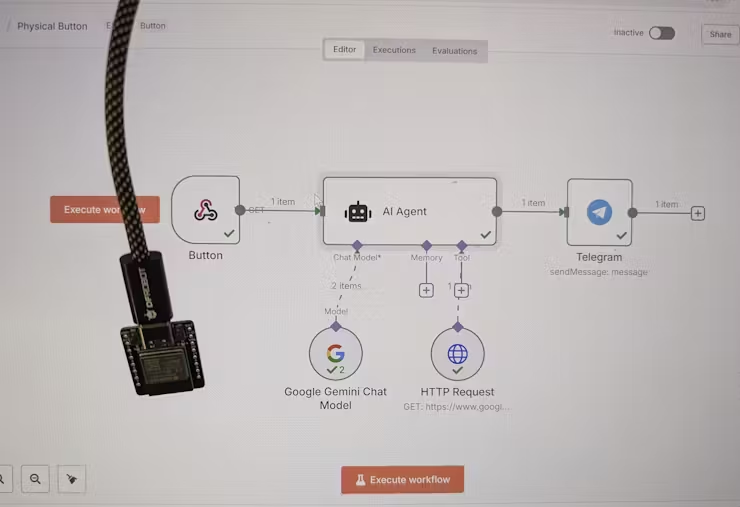
  • The “Press for Pizza” Button:
    • Hardware: An ESP32 board connected to a simple push button. When pressed, the ESP32 sends an HTTP POST request (a “webhook”) to a specific n8n URL.
    • n8n Workflow:
      • Trigger: Receives the webhook from the ESP32.
      • Action 1: Sends a message to a group chat in Telegram (or Discord/Slack) with “Pizza time! Someone order please.”
      • Action 2 (Optional): Could even trigger an order with a food delivery service API if I set that up!
  • Environment Monitor & Alert System:
    • Hardware: An ESP32 connected to temperature/humidity sensors. It periodically (e.g., every 5 minutes) reads the sensor data and sends it via MQTT (a lightweight messaging protocol for IoT) to an MQTT broker that n8n is listening to.
    • n8n Workflow:
      • Trigger: Receives a new MQTT message from the ESP32.
      • Action 1: Logs the temperature and humidity data to a Google Sheet or a local database for historical tracking.
      • Action 2: If the temperature or humidity goes above/below a set threshold, it sends a notification to my phone or even toggles a smart plug (via Home Assistant) connected to a fan or humidifier.

The Impact: I can build truly custom smart home devices or physical interaction points, collecting real-world data and automating responses, all orchestrated visually through n8n! It’s incredibly satisfying to see these custom tools come to life.


Why n8n is Such a Powerful Addition to My Toolkit

If you’re feeling the push and pull of digital tasks like I was, n8n offers a compelling solution. I wholeheartedly recommend exploring it if you:

  • Are tired of manual drudgery: It’s built for automating those repeatable tasks that drain your time and energy.
  • Value privacy and control: The self-hosting option is a huge advantage for keeping your data in your hands.
  • Want powerful automation without breaking the bank: Leverage the open-source community edition for free.
  • Are keen to integrate AI into your routines: Its robust AI nodes (for LLMs like OpenAI, Gemini, Ollama) make it surprisingly easy to add intelligence to your workflows.
  • Enjoy tinkering with hardware: The ability to seamlessly connect with microcontrollers like ESP32 opens up a world of physical automation.
  • Find other “no-code” tools too restrictive: n8n offers a fantastic balance of visual building and underlying flexibility. There’s a learning curve, but the community and documentation are incredibly supportive.

For me, embracing n8n has been about much more than just saving time; it’s about gaining mental bandwidth and focusing on creative, impactful work. The ability to connect my office software, home devices, and even custom hardware projects under one automation umbrella is truly transformative.


Ready to Build Your Own Automated World?

If this resonates with you, I encourage you to check out n8n. Whether you start with their hosted cloud service or dive into self-hosting, you’re investing in a more efficient, less stressful digital future.

What repetitive tasks are you currently struggling with? Are you also interested in bridging the digital and physical with tools like ESP32? Share your thoughts and automation aspirations in the comments below!


Unleashing the Web’s Potential: Your Ultimate Guide to Collecting Data for Personal Projects with Selenium

Web scrapping

Unleashing the Web’s Potential: Your Ultimate Guide to Collecting Data for Personal Projects with Selenium

In today’s data-driven world, the ability to collect information from various online sources can unlock incredible possibilities for personal projects. Whether you’re a hobbyist developer, a budding data scientist, or simply someone with a burning idea, accessing structured web data can be the key to bringing your vision to life. While many websites offer powerful APIs for programmatic access, a vast ocean of information remains locked behind traditional web interfaces. That’s where web scraping and web automation tools like Selenium come in.

Selenium automation isn’t just for testing; it’s a dynamic framework that allows you to control web browsers, mimicking human interactions. Imagine being able to automatically navigate websites, click buttons, fill out forms, and extract precisely the data you need, all with code. This blog post will guide you through the essentials of using Selenium for data collection, covering popular programming languages and providing valuable insights to ensure your projects are both effective and ethical.

Navigating the Ethical Landscape of Web Scraping

Before we dive into the technicalities, it’s paramount to understand the ethical and legal boundaries of data extraction. Responsible web scraping is crucial to avoid potential issues and maintain the integrity of the web.

Key Ethical Guidelines for Web Scrapers:

  • Respect robots.txt: Always check a website’s robots.txt file (e.g., www.example.com/robots.txt). This file provides guidelines for web crawlers, indicating which parts of the site can and cannot be accessed. Adhering to these rules is a fundamental ethical practice.
  • Review Terms of Service (ToS): Many websites explicitly state their policies on automated data collection in their Terms of Service. Always read these to ensure your activities are permissible. Some ToS strictly prohibit scraping.
  • Avoid Overloading Servers: Send requests at a reasonable, human-like pace. Implement delays (e.g., time.sleep() in Python) between requests to prevent overwhelming the website’s server, which can lead to service disruption for other users.
  • Prioritize APIs: If a website offers a public API, use it! APIs are designed for efficient and permissioned data access, making them the most reliable and ethical method.
  • Be Transparent (User-Agent): Identify your scraper with a descriptive User-Agent string. This allows website administrators to contact you if necessary.
  • Do Not Scrape Private or Sensitive Data: Avoid collecting personally identifiable information (PII) or confidential data without explicit consent. Adhere to data privacy regulations like GDPR or CCPA.
  • Avoid Copyright Infringement: While factual data itself is generally not copyrightable, the way it’s presented (e.g., specific text, images, database structures) often is. Be mindful of copyright laws when collecting and using content. If you’re using collected data for publication, ensure you have the right to do so and always attribute sources.
  • Don’t Bypass Security Measures: Attempting to bypass CAPTCHAs, IP blocks, or other security features can be considered malicious and may have legal repercussions.

By following these principles, you can ensure your web data collection efforts are both productive and respectful.

Getting Started with Selenium Automation

Selenium WebDriver acts as a bridge between your code and a real web browser. To begin your journey into browser automation, you’ll need:

  1. Selenium WebDriver Library: This is the core library that provides the commands to control the browser. You’ll install this into your chosen programming language environment.
  2. Browser Driver: This is a specific executable file (e.g., ChromeDriver for Google Chrome, GeckoDriver for Mozilla Firefox) that allows Selenium to communicate with the browser. You must download the correct driver for your browser version and ensure your system can find it (either by placing it in your system’s PATH or by specifying its location in your code).

Once these prerequisites are in place, you’re ready to write your first automated data collection script!

1. Python with Selenium: The Agile Scraper’s Friend

Python is the go-to language for web scraping projects due to its clear syntax, vast ecosystem of data processing libraries, and a large, supportive community. It’s excellent for rapid development and tackling dynamic web content.

How to Start with Selenium Python:

  1. Install Python: Download and install Python from python.org.
  2. Install Selenium Library: Open your terminal or command prompt and run:Bashpip install selenium
  3. Download Browser Driver: Get the compatible ChromeDriver from the Chromium website or GeckoDriver for Firefox from the Mozilla GitHub releases. Place it in a directory accessible via your system’s PATH, or note its path for explicit use in your script.

Sample Code Snippet (Python):

This example demonstrates opening Google, searching for “Selenium web scraping,” and printing the page title.

Python

from selenium import webdriver
from selenium.webdriver.common.by import By
from selenium.webdriver.common.keys import Keys
import time

# --- Setup: Ensure your chromedriver is in your PATH or specify its path ---
# Option 1 (Recommended): If chromedriver is in your system's PATH
driver = webdriver.Chrome()

# Option 2: Specify the path to your chromedriver executable
# from selenium.webdriver.chrome.service import Service
# service = Service('C:/path/to/your/chromedriver.exe') # Adjust path for your OS
# driver = webdriver.Chrome(service=service)

try:
    # Navigate to a website
    driver.get("https://www.google.com")
    print(f"Page title: {driver.title}")

    # Find the search bar element by its 'name' attribute
    # You'll often use By.ID, By.CLASS_NAME, By.XPATH, By.CSS_SELECTOR for elements
    search_box = driver.find_element(By.NAME, "q")

    # Type a query and press Enter
    search_box.send_keys("Selenium web scraping" + Keys.RETURN)

    # Wait for the search results page to load (a simple, but often effective, delay)
    time.sleep(3) 

    print(f"New page title after search: {driver.title}")

    # Example of extracting data: Find all search result links (conceptual)
    # search_results = driver.find_elements(By.CSS_SELECTOR, "h3 a") # Adjust CSS selector as needed
    # for result in search_results:
    #     print(result.text + ": " + result.get_attribute("href"))

finally:
    # Always close the browser to release resources
    driver.quit()

Pros of Python with Selenium:

  • Ease of Use: Highly readable syntax makes it accessible for beginners in web automation.
  • Rich Libraries: Seamless integration with powerful data analysis libraries like Pandas and NumPy for post-scraping data processing.
  • Vibrant Community: Extensive documentation, tutorials, and community support for troubleshooting.
  • Versatility: Beyond scraping, Python can be used for backend development, machine learning, and more.

Cons of Python with Selenium:

  • Performance: Can be slower than compiled languages for very large-scale, high-frequency data collection.
  • Global Interpreter Lock (GIL): Limits true multi-threading for CPU-bound tasks, though asynchronous programming can enhance concurrency for I/O-bound scraping.

2. Java with Selenium: The Enterprise-Grade Solution

Java, a robust and platform-independent language, is a common choice for building large, scalable, and maintainable automation frameworks, particularly in enterprise environments.

How to Start with Selenium Java:

  1. Install Java Development Kit (JDK): Download and install a recent JDK version (e.g., OpenJDK).
  2. Install Build Tool (Maven/Gradle): These tools simplify dependency management.
  3. Set up an IDE: Use popular Integrated Development Environments like IntelliJ IDEA or Eclipse.
  4. Add Selenium Dependencies: In your pom.xml (for Maven) or build.gradle (for Gradle), include the Selenium Java dependency.
  5. Download Browser Driver: Obtain the compatible ChromeDriver or GeckoDriver, as described for Python.

Sample Code Snippet (Java with Maven):

First, add this to your pom.xml within the <dependencies> section:

XML

<dependency>
    <groupId>org.seleniumhq.selenium</groupId>
    <artifactId>selenium-java</artifactId>
    <version>4.21.0</version> </dependency>

Then, your Java code:

Java

import org.openqa.selenium.WebDriver;
import org.openqa.selenium.chrome.ChromeDriver;
import org.openqa.selenium.By;
import org.openqa.selenium.Keys;
import org.openqa.selenium.WebElement;

public class SeleniumJavaExample {
    public static void main(String[] args) {
        // --- Setup: Ensure your chromedriver is in your PATH or specify its path ---
        // Option 1 (Recommended): If chromedriver is in your system's PATH
        // System.setProperty("webdriver.chrome.driver", "chromedriver"); // Not strictly needed if in PATH

        // Option 2: Specify the exact path to your chromedriver executable
        System.setProperty("webdriver.chrome.driver", "/path/to/your/chromedriver"); // Adjust for your OS

        WebDriver driver = new ChromeDriver();

        try {
            // Navigate to Google
            driver.get("https://www.google.com");
            System.out.println("Page title: " + driver.getTitle());

            // Find the search bar
            WebElement searchBox = driver.findElement(By.name("q"));
            searchBox.sendKeys("Selenium web scraping" + Keys.RETURN);

            // Wait for results
            Thread.sleep(3000); // 3 seconds delay

            System.out.println("New page title after search: " + driver.getTitle());

        } catch (InterruptedException e) {
            e.printStackTrace();
        } finally {
            // Close the browser
            driver.quit();
        }
    }
}

Pros of Java with Selenium:

  • Robustness & Scalability: Ideal for building large, complex, and highly maintainable web scraping solutions.
  • Strong Typing: Helps catch errors during compilation, leading to more stable and predictable code.
  • Performance: Generally performs faster than interpreted languages for execution-heavy tasks.
  • Mature Ecosystem: Comprehensive IDEs and testing frameworks (e.g., JUnit, TestNG) for enterprise-grade development.

Cons of Java with Selenium:

  • Verbosity: Java code can be more verbose, requiring more lines of code for similar functionality compared to Python.
  • Steeper Learning Curve: Setting up and managing Java projects, especially with build tools, can be more challenging for beginners.
  • Less Agile for Quick Scripts: Not as well-suited for quick, disposable data gathering scripts.

3. Other Languages with Selenium: Expanding Your Horizon

Selenium WebDriver offers official bindings for a variety of other popular programming languages, allowing you to leverage your existing skill set or explore new options for automated web data extraction.

C# with Selenium

C# is Microsoft’s versatile language, extensively used with the .NET framework for Windows applications and web development.

  • How to start: Install Visual Studio, create a .NET project, and add the Selenium.WebDriver NuGet package. Download the appropriate browser driver.
  • Sample Code Snippet (C#):
using OpenQA.Selenium;
using OpenQA.Selenium.Chrome;
using System;
using System.Threading;

class SeleniumCSharpExample
{
    static void Main(string[] args)
    {
        // --- Setup: Chromedriver must be in PATH or path specified ---
        IWebDriver driver = new ChromeDriver(); // Assumes chromedriver is in PATH

        try
        {
            driver.Navigate().GoToUrl("https://www.google.com");
            Console.WriteLine($"Page title: {driver.Title}");

            IWebElement searchBox = driver.FindElement(By.Name("q"));
            searchBox.SendKeys("Selenium web scraping" + Keys.Return);

            Thread.Sleep(3000); // 3 seconds delay

            Console.WriteLine($"New page title: {driver.Title}");
        }
        finally
        {
            driver.Quit();
        }
    }
}
  • Pros: Deep integration with the .NET ecosystem, powerful IDE (Visual Studio), strong for developing desktop and web applications.
  • Cons: While .NET Core is cross-platform, its historical focus has been Windows. Less community emphasis on general web data collection compared to Python.

JavaScript (Node.js) with Selenium

JavaScript, powered by Node.js, is an excellent choice for full-stack developers looking to extend their skills to web automation. It’s particularly strong for handling asynchronous operations common in web interactions.

  • How to start: Install Node.js, initialize a new project (npm init), and install selenium-webdriver (npm install selenium-webdriver). Download the appropriate browser driver.
  • Sample Code Snippet (JavaScript):
const { Builder, By, Key, until } = require('selenium-webdriver');

async function runSeleniumScript() {
    // --- Setup: Chromedriver must be in PATH or path specified ---
    let driver = await new Builder().forBrowser('chrome').build(); // Assumes chromedriver is in PATH

    try {
        await driver.get('https://www.google.com');
        console.log(`Page title: ${await driver.getTitle()}`);

        let searchBox = await driver.findElement(By.name('q'));
        await searchBox.sendKeys('Selenium web scraping', Key.RETURN);

        await driver.sleep(3000); // 3 seconds delay

        console.log(`New page title: ${await driver.getTitle()}`);
    } finally {
        await driver.quit();
    }
}

runSeleniumScript();
  • Pros: Native to the web, allowing for shared knowledge between front-end and automation tasks. Excellent for asynchronous and event-driven data collection needs.
  • Cons: Debugging complex asynchronous flows can sometimes be challenging. The web scraping community for Node.js is growing but still not as extensive as Python’s.

Ruby with Selenium

Ruby is admired for its elegant syntax and the Ruby on Rails framework, making it a strong contender for expressive and concise automation scripts.

  • How to start: Install Ruby, then install the selenium-webdriver gem (gem install selenium-webdriver). Download the appropriate browser driver.
  • Sample Code Snippet (Ruby):
require 'selenium-webdriver'

# --- Setup: Chromedriver must be in PATH or path specified ---
driver = Selenium::WebDriver.for :chrome # Assumes chromedriver is in PATH

begin
  driver.navigate.to 'https://www.google.com'
  puts "Page title: #{driver.title}"

  search_box = driver.find_element(name: 'q')
  search_box.send_keys 'Selenium web scraping', :return

  sleep 3 # 3 seconds delay

  puts "New page title: #{driver.title}"

ensure
  driver.quit
end
  • Pros: Clean and concise syntax, fostering productive development. Strong support for test automation frameworks (e.g., Capybara, RSpec).
  • Cons: A smaller web scraping community compared to Python. Less widely adopted for general-purpose data collection projects.

R with Selenium

R is primarily used for statistical computing and data visualization. While less common for general web automation, it provides tools for direct web data extraction into an R environment for immediate analysis.

  • How to start: Install R and RStudio, then install the selenium and selenider packages (install.packages("selenium"); install.packages("selenider")). Ensure Java 17+ is installed. Download the appropriate browser driver.
  • Sample Code Snippet (R):
library(selenider)
library(dplyr) # For piping operations

# --- Setup: Chromedriver must be in PATH and Java 17+ installed ---
session <- selenider_session("selenium", browser = "chrome")

tryCatch({
  # Navigate to Google
  open_url(session, "https://www.google.com")
  cat("Page title:", elem_text(session %>% find_element("title")), "\n")

  # Find the search bar and type a query
  search_box <- session %>% find_element(css = "textarea[name='q']") # Google search box is often a textarea
  elem_send_keys(search_box, "Selenium web scraping", key = "return")

  # Wait for search results
  Sys.sleep(3) # 3 seconds delay

  cat("New page title:", elem_text(session %>% find_element("title")), "\n")

}, finally = {
  close_session(session)
})
  • Pros: Seamless integration with R’s powerful data analysis, statistical modeling, and visualization capabilities. Ideal for researchers and data scientists already proficient in R.
  • Cons: Not designed for broad general-purpose scripting. The web automation community in R is smaller compared to Python or Java.

Inspiring Personal Projects with Web Automation

With the power of Selenium automation at your fingertips, you can transform countless ideas into reality. Here are some popular web scraping project ideas that can be developed using these techniques:

  • E-commerce Price Tracker: Automatically monitor product prices across multiple online stores. Get alerts when prices drop or stock changes.
  • Real-time News Aggregator: Build a custom news feed by collecting headlines and articles from various news outlets based on your specific interests or keywords.
  • Job Board Scraper: Automate the search for relevant job postings from different job sites, filter them by criteria, and store them in a manageable format.
  • Sports Statistics Collector: Gather game results, player statistics, and team standings from sports websites for personal analysis or fantasy league insights.
  • Real Estate Market Analysis Tool: Collect property listings, pricing data, and neighborhood information to analyze trends or find ideal rental/purchase opportunities.
  • Event Calendar Builder: Scrape event details (date, time, location, description) from local venue websites, community pages, or ticketing sites.
  • Social Media Activity Monitor (Public Data): (Always respecting platform ToS) Track public engagement metrics for specific public profiles or trends.
  • Academic Research Assistant: Automate the collection of publicly available research paper metadata or abstracts from academic databases.
  • Online Course Availability Notifier: Get automatic notifications when a specific online course opens for enrollment or a new batch begins.
  • Review Sentiment Analyzer: Scrape product reviews from e-commerce sites or movie reviews from entertainment platforms to perform sentiment analysis.

Remember, the key to successful web data collection is to start small, understand the target website’s structure, and diligently adhere to ethical guidelines. By mastering Selenium, you’re not just automating tasks; you’re unlocking a world of data for your personal innovation. Get started today and see what incredible projects you can build!