My First Small IoT Project: A Smart Water Tank Level Monitor

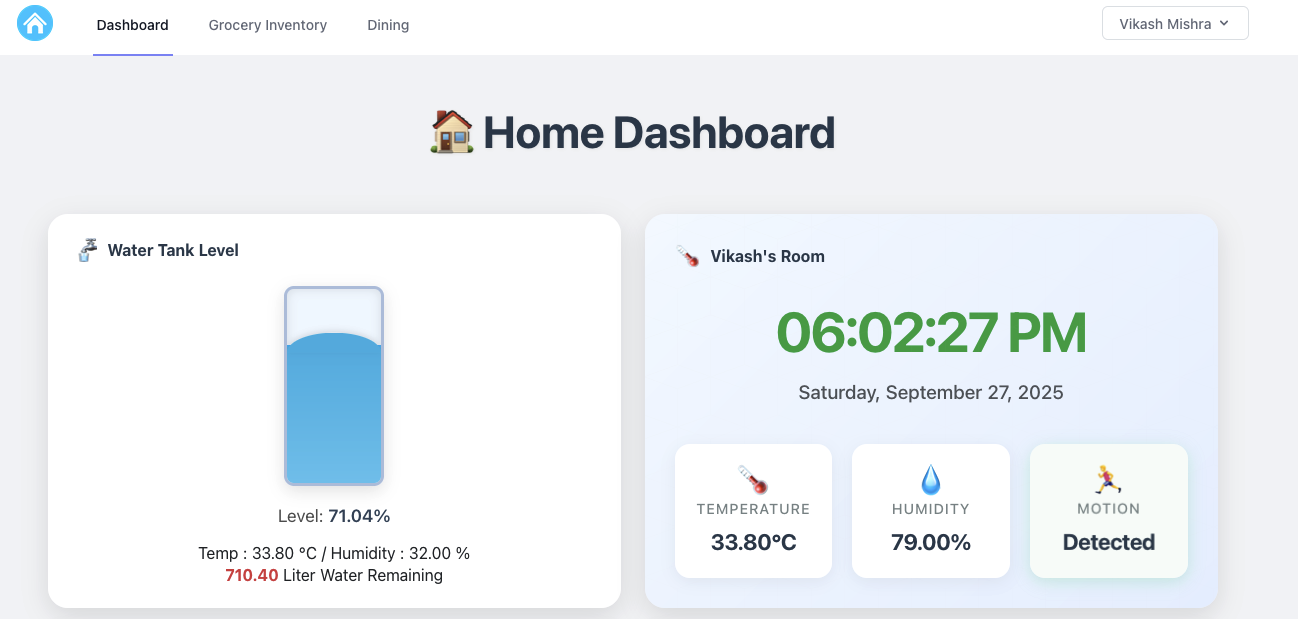
Home Dashboard

Starting your first Internet of Things (IoT) project can feel like opening a black box of circuits, code, and 3D printing fails. But the payoff—when that little red LED finally blinks, or in my case, when the water level reading finally appears on the screen—is worth every moment of frustration.

My goal was simple: stop climbing onto the roof to check the tank and instead build a reliable water level monitoring system using an ESP32.


The Hardest Part Wasn’t the Code—It Was the Plastic

When I began, I thought the coding and wiring would be my biggest challenge.
Turns out, it was the housing.

The device needed to sit securely on the tank cap and survive outdoors. That meant designing a custom, weatherproof enclosure. This is where I dove into 3D modeling with Blender—and failed many times.

I printed version after version:

  • Too small
  • Walls too thin
  • Ultrasonic sensor hole misaligned
  • Mounting screw holes stripped

Each mistake was frustrating, but every failure taught me something new. Eventually, I managed to design and print the perfect enclosure—watertight, sturdy, and snugly mounted on the tank cap.

The feeling when a digital design becomes a working physical object is simply incredible!


The IoT Brains and Sensory Organs

Here’s the simple but powerful hardware setup I used:

  • ESP32 Development Board – The brain of the project. Powerful, has built-in Wi-Fi (great for data logging or sending alerts), and beginner-friendly with the Arduino IDE.
  • Ultrasonic Distance Sensor (HC-SR04 or similar) – The core sensor. It measures the distance between the sensor and the water surface.
  • DHT11/DHT22 Sensor – Bonus sensor for temperature and humidity inside the enclosure. Not required for water monitoring, but great for learning to integrate multiple sensors.

From Distance to Liters: The Simple Physics

The trick is converting the distance measured by the sensor into meaningful values like water level percentage and remaining tank capacity.

Known values in my setup:

  • Distance from sensor to bottom (Dfloor) = 120 cm
  • Distance when tank is empty (Dempty) = 20 cm
  • Tank capacity (Vcapacity) = 1000 liters

Step 1: Usable Water Height
Hmax = Dfloor – Dempty = 100 cm

Step 2: Current Water Height
Hwater = Dfloor – Dmeasured

Step 3: Water Level Percentage
Level% = (Hwater / Hmax) × 100

Since Hmax = 100 cm, every 1 cm of water = 1% full.

Step 4: Volume Remaining
Volume = (Hwater / 100) × Vcapacity

With a 1000-liter tank and 100 cm usable height, every 1 cm of water ≈ 10 liters.


Connect with Me – Buy This Smart IoT Project!

I’m passionate about making practical IoT solutions accessible and affordable.

If this project excites you, you don’t need to build it from scratch—I’ve already developed and tested a ready-to-install Smart Water Tank Level Monitor. It’s compact, weatherproof, Wi-Fi enabled, and fully calibrated for home use.

💧 This device will save you time, effort, and water by giving you accurate tank readings instantly.

👉 If you’d like to purchase one, simply connect with me:
📩 mail@vikashmishra.online

The ESP32 Code, Web Integration, and Hosting

The ESP32 code powering this project not only calculates the water level but also integrates Wi-Fi connectivity. To ensure efficiency, it uses a smart reporting algorithm—sending data to the server only when the water level changes by 1% or more. This saves bandwidth and reduces server load.

For hosting, I use CLOUDPOKO.com

Why CLOUDPOKO?

  • Super-fast, reliable servers
  • Affordable plans perfect for IoT API calls
  • Easy setup for PHP-based dashboards
  • Outstanding uptime and support

CLOUDPOKO has been the backbone of my IoT setup. If you’re planning to host your own IoT projects or even personal websites, I highly recommend them.

On the backend, I built a simple PHP dashboard to collect sensor data and display real-time water levels. It’s lightweight, efficient, and works seamlessly with CLOUDPOKO hosting.

(I’ll share the complete ESP32 (Arduino) code in my next blog.)
How the Bambu Lab A1 Mini’s Timelapse Feature Can Secretly Ruin Your Prints

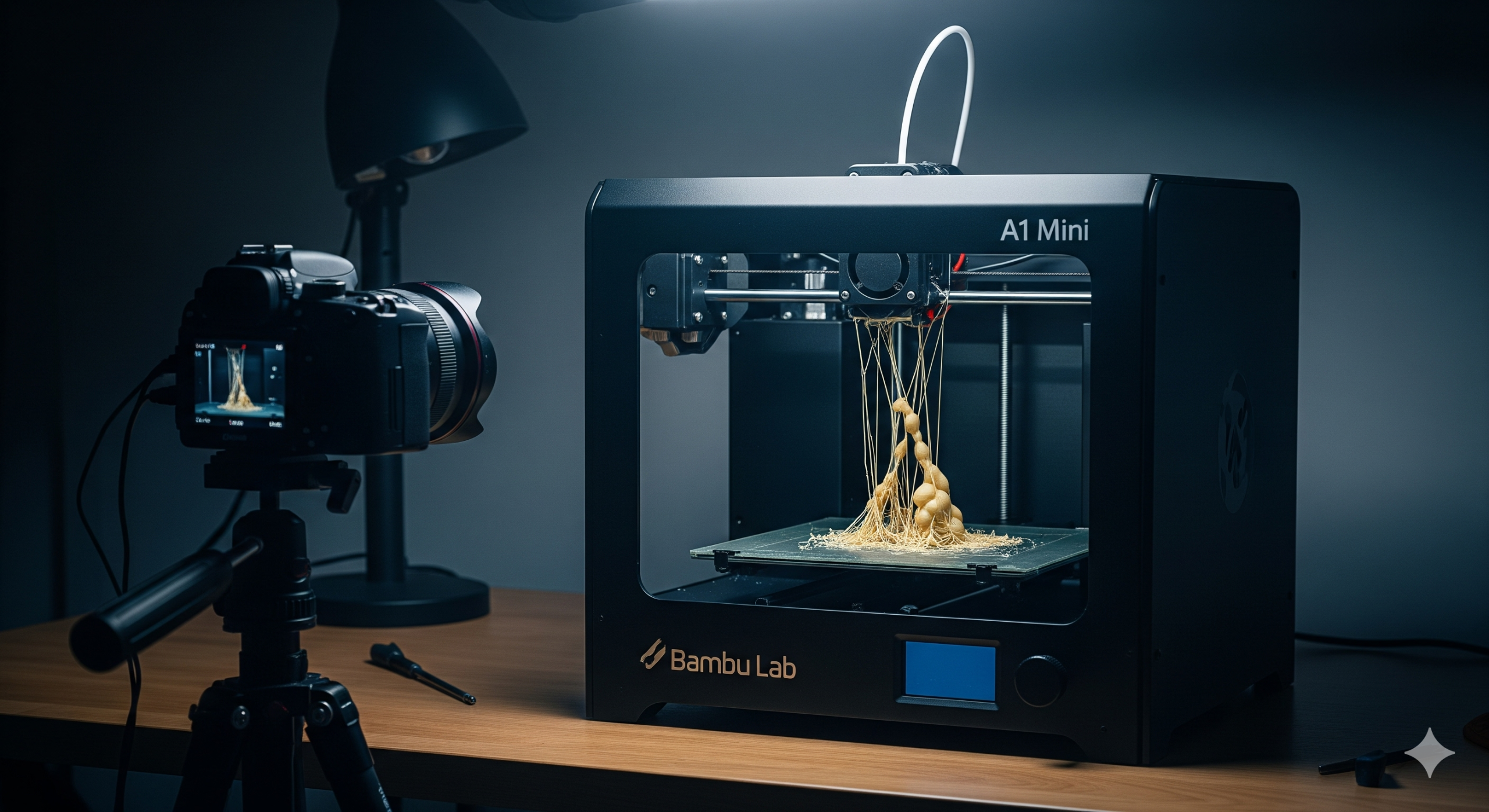
Error due to timelapse

As a 3D printing enthusiast, I’ve seen my share of exciting new features, but few were as captivating as the built-in camera and timelapse function on the Bambu Lab A1 Mini. I mean, who doesn’t want to watch their 3D prints come to life in a sped-up video? I used it on everything I printed. It was fun… until my prints started failing.

It wasn’t a sudden crash; it was a slow, frustrating decline in print quality. My models were littered with tiny imperfections: little blobs, wispy threads, and messy-looking layers. I tried everything—tweaking settings, drying my filament, and even swapping nozzles. Nothing worked.


The Hidden Flaw of the A1 Mini Timelapse

I eventually realized the cause wasn’t my filament or my settings—it was the very feature I loved. The A1 Mini’s timelapse mode works by moving the print head outside the printing area to snap a photo at the end of each layer. While the hot nozzle is parked, molten PLA can ooze out.

When the head returns to continue the print, these tiny drops of filament get deposited onto the model. This constant start-stop process, repeated for every single layer, is a perfect recipe for stringing and blobs. It’s like stopping a pen while you’re writing; you get a blotch of ink right where you lift it.

For detailed models, this is a disaster. What was supposed to be a fun feature was actually sabotaging my prints.


My Top Tip: Turn Off the Timelapse

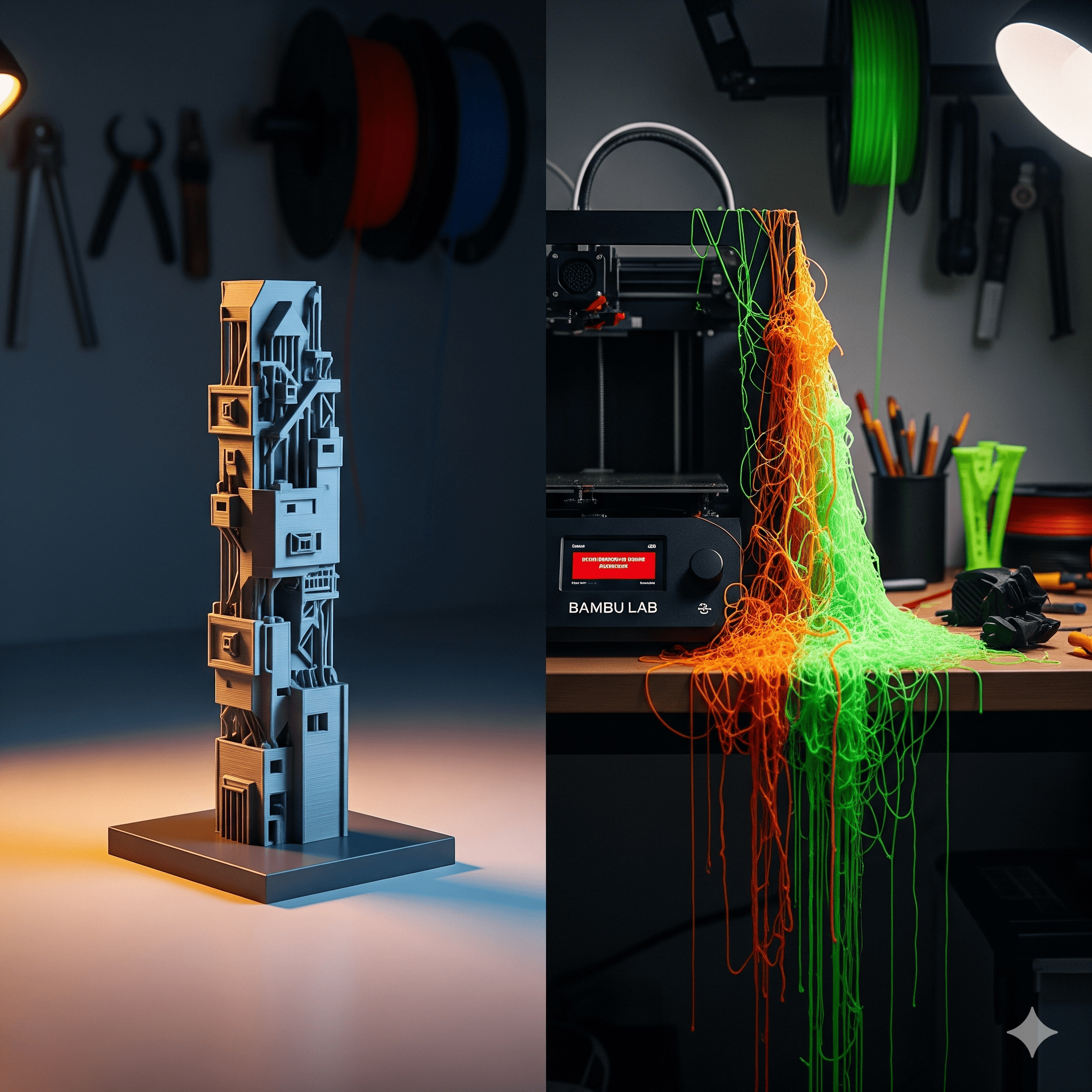
After much frustration, I decided to run a simple test: I printed the same model twice—once with the timelapse on and once with it off. The difference was incredible. The print with the timelapse off was perfectly clean and smooth, while the other was riddled with familiar imperfections.

My personal recommendation is simple: if you’re having print quality issues with your Bambu Lab A1 Mini, the very first thing you should do is turn off the timelapse feature. A successful, high-quality print is far more rewarding than a cool video of a failed one.

If you absolutely must have a timelapse, consider using the “Smooth Timelapse” option in Bambu Studio. It helps by moving the nozzle to a small purge tower to prevent oozing before it takes a picture.

For me, the peace of mind that comes with a reliable print outweighs the desire for a quick video. I now only use the timelapse for large, simple models where a little imperfection won’t matter.


I share my experiences to help other makers avoid the same frustrating pitfalls. If you found this post helpful, be sure to subscribe to my blog and follow my YouTube channel for more honest reviews, tips, and tricks based on my own 3D printing adventures. Happy printing!

Did you find this helpful? Have you had similar experiences with the A1 Mini? Share your thoughts and questions in the comments below!

My First 3D Print Failure: How the Wrong Material Taught Me a Hard Lesson

Failed 3D Print Banner

When I first got my Bambu Lab A1 Mini, I felt like I had a new superpower. I imagined creating cool gadgets, practical items for my home, and so much more. But my excitement quickly turned to frustration as one print after another failed. The designs were perfect, the settings seemed right, yet my creations would warp, snap, or simply fall apart. It took me a while to realize the real culprit: I was using the wrong material for the job.

I’m sharing my story so you don’t have to go through the same headaches and wasted filament I did. Choosing the wrong material is like using a plastic spoon to dig a well—it’s just not going to work. Let my experience save you from those frustrating moments.


The Secret Mantra of 3D Printing: “Know Your Material”

Here’s the honest truth they don’t tell you upfront: every 3D printing material has its own unique personality. Some are easy to work with, while others are a bit fussy. Ignoring these traits is a recipe for disaster. My biggest “aha!” moment came when I realized that a material’s properties—like its strength, flexibility, and heat resistance—are just as important as the design itself.

To help you avoid the failures that almost made me give up, here’s a breakdown of the materials I’ve used, along with what they’re best for and what to watch out for.


A Breakdown of Common 3D Printing Filaments

PLA (Polylactic Acid): The Beginner’s Best Friend

  • Properties: This is your entry-level, no-fuss filament. Made from renewable sources, PLA is very easy to print with, doesn’t warp much, and gives a smooth, glossy finish.
  • What it’s best for: PLA is perfect for visual models, prototypes, and low-stress items. Think decorative pieces for your living room or small gifts for friends. My first successful prints—a tiny keychain and a decorative pot—were made with PLA.
  • My mistake: I tried to print a small teddy bear model, thinking PLA was a safe bet. However, I used the wrong temperature setting for the specific PLA I had, which had a lower melting point. This led to a complete mess—instead of a cute teddy, I got a stringy, deformed structure that finally gave up. I learned that even with beginner-friendly PLA, the right settings are crucial.

ABS (Acrylonitrile Butadiene Styrene): The Tough Guy

  • Properties: If you’ve ever played with LEGO bricks, you’ve experienced ABS. It’s strong, durable, and can handle higher temperatures than PLA. The catch? It’s a bit tricky to print with. ABS requires a heated bed to prevent warping and gives off a strong smell, so make sure you have good ventilation.
  • What it’s best for: Use ABS for functional parts, end-use components, and anything that needs to be tough and durable. Think car parts, electronic casings, or structural brackets.
  • My mistake: I first tried printing a car part with PLA, which warped almost immediately. I then switched to ABS, which worked perfectly, but the strong plastic smell taught me a valuable lesson about the importance of a well-ventilated space.

PETG (Polyethylene Terephthalate Glycol): The Reliable All-Rounder

  • Properties: PETG is the perfect middle ground. It offers the strength and durability of ABS without the terrible smell, and it’s almost as easy to print as PLA. It’s also tough and resistant to water and chemicals.
  • What it’s best for: This is my go-to material for a wide range of projects. It’s fantastic for mechanical parts, durable prototypes, and objects that need to withstand a bit of rough use.
  • My success story: After my ABS experience, I started using PETG for most of my functional prints. I’ve used it to create durable brackets and custom containers, and it has never let me down.

Nylon (Polyamide): The High-Performance Champion

  • Properties: Nylon is an incredibly strong, flexible, and wear-resistant material. It’s perfect for parts that need to bend without breaking. The biggest challenge? It’s highly hygroscopic, which means it absorbs moisture from the air like a sponge. Printing with wet nylon results in weak, bubbly layers.
  • What it’s best for: Use nylon for gears, bearings, hinges, and other high-wear components.
  • My mistake: I wanted to print a replacement gear for an old motor with nylon. I left the filament out on my desk for a few days, and the resulting print was a complete failure—full of bubbles and completely brittle. I quickly learned that proper storage is a must for this material.

My Bambu Lab A1 Mini Settings: A Quick Guide

The Bambu Lab A1 Mini is a fantastic printer, but even it needs the right settings to work its magic. While the pre-loaded profiles in Bambu Studio are usually a great starting point, here are some of the temperature settings I’ve found to work best on my A1 Mini, especially when using the Textured PEI Plate.

  • PLA:
    • Nozzle Temperature: 220°C. This is a bit higher than some other printers, but it works perfectly with the A1 Mini’s high-speed printing.
    • Bed Temperature: 65°C. This ensures excellent bed adhesion and prevents warping, especially on larger prints.
  • PETG:
    • Nozzle Temperature: 250°C. This temperature provides a good balance for strong layer adhesion and reduces stringing, a common PETG problem.
    • Bed Temperature: 70-80°C. A higher bed temperature helps to prevent warping and ensures the print sticks well to the plate.
  • ABS:
    • Nozzle Temperature: 250-260°C. Since the A1 Mini is an open-frame printer, you’ll need to print at the higher end of the temperature range to compensate for the lack of an enclosure.
    • Bed Temperature: 80°C. This is the maximum bed temperature for the A1 Mini. While it’s not ideal for large ABS prints, it can work for smaller parts if you also use a brim. Remember, an enclosure is highly recommended for ABS to get the best results and avoid warping.
  • Nylon:
    • Nozzle Temperature: 260°C (The A1 Mini’s max temp).
    • Bed Temperature: 80°C (Max). Printing Nylon on the A1 Mini is a real challenge due to the lack of an enclosure and the bed’s maximum temperature. It’s generally not recommended for large or critical parts, but you can try to get away with small, non-critical parts with a wide brim and by keeping the printer away from any drafts.

My Final Advice: Pick the Right Tool for the Job

Your 3D printing journey will be much smoother if you think of material selection as the first step of your design process, not the last. Ask yourself these key questions before you print:

  1. What does this part need to do? Is it for looks or for function?
  2. What conditions will it face? Will it be under stress, exposed to heat, or need to flex?
  3. What’s my experience level? Am I ready for the challenge of a more difficult material?

Learning from my mistakes saved me a lot of headaches and wasted filament. By understanding your materials, you can ensure your projects are not only beautiful but also strong and reliable. Happy printing!


Want to see how the wrong filament choice caused a print to fail? Check out the video below for a time-lapse of my teddy bear print failure. It’s a real eye-opener!

Don’t forget to subscribe to my blog for more honest insights and tips, and hit that subscribe button on my YouTube channel so you don’t miss out on future projects and lessons!